What is Consent Mode v2?
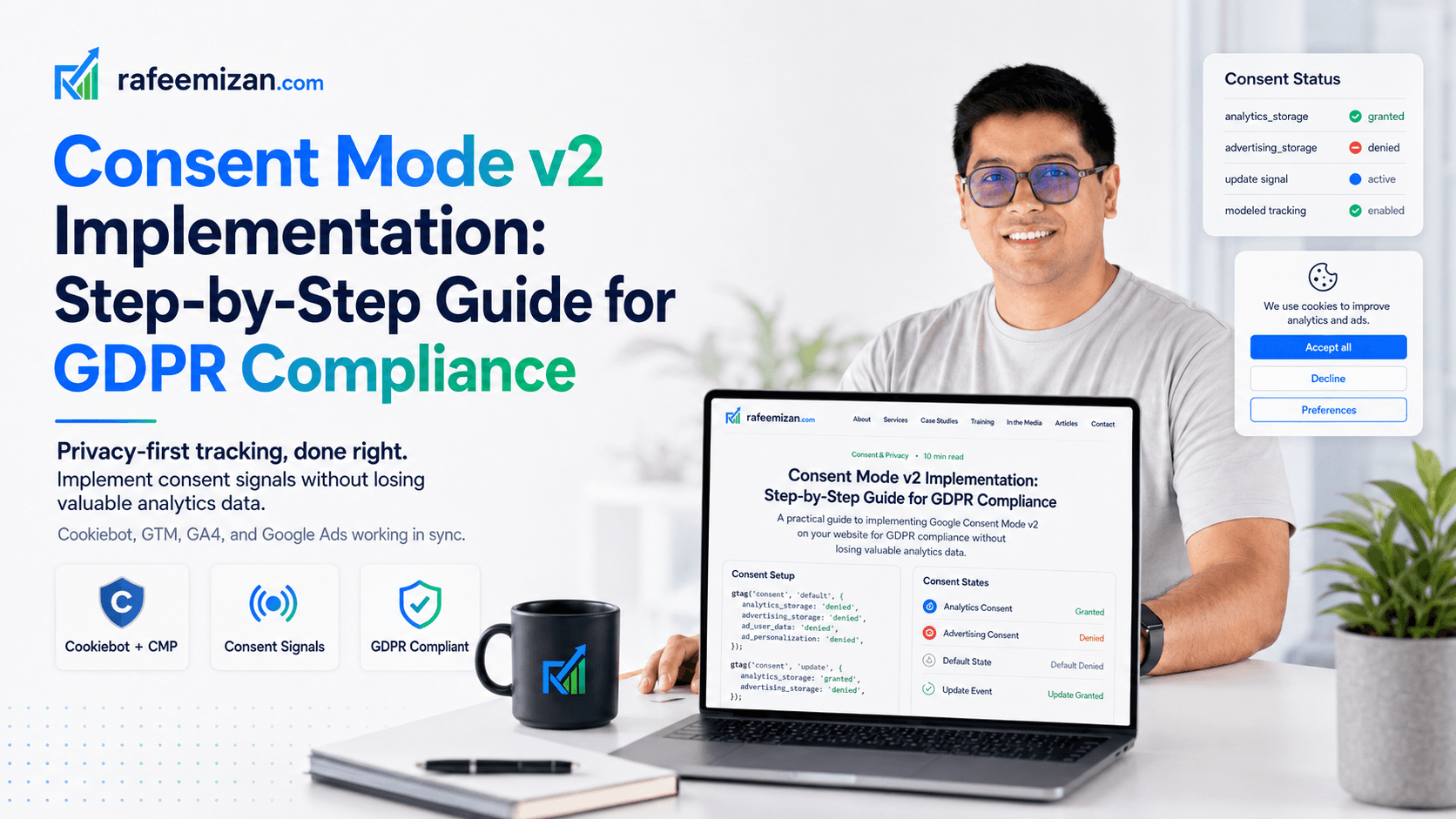
Consent Mode v2 is Google's framework for handling data collection when users haven't given full consent. The key idea is that instead of completely blocking GA4 and Google Ads when someone declines cookies, Consent Mode lets these tools run in a degraded but still useful mode.
In practice, what that means is:
- GA4 can switch to modelled mode, estimating behaviour for non-consenting users based on patterns from consenting ones
- Google Ads can still receive some conversion signals even without full cookie consent
- Remarketing can continue operating within privacy constraints
For any site serving EU users, this is now effectively required. Google has made it clear that Consent Mode v2 is a prerequisite for using their ad products compliantly.

The Consent Mode v2 Framework
There are two consent signals that GA4 and Google Ads pay attention to:
advertising_storage— controls whether advertising cookies can be setanalytics_storage— controls whether analytics cookies can be set
Beyond those two storage signals, you also need to handle three states:
- When the user explicitly consents (granted)
- When the user declines or ignores the banner (denied)
- When the user changes their mind later (update)
Getting all three right is what makes the implementation solid. I've seen plenty of setups that handle the initial grant correctly but never fire the update signal when a user changes their preferences, which means your consent records are permanently out of sync.
Step 1: Choose and Set Up a Consent Management Platform
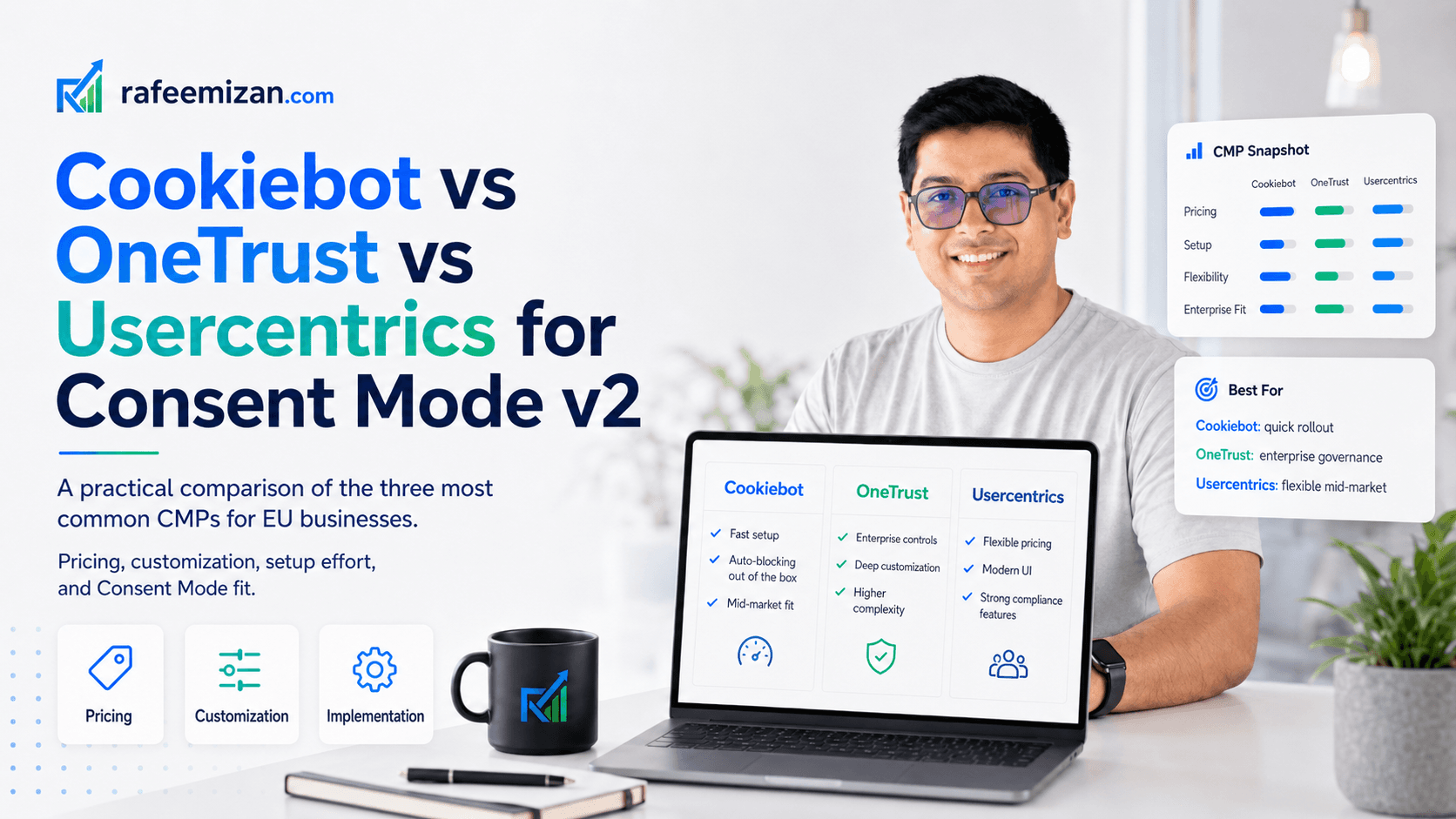
You need a CMP to collect consent in a legally compliant way and pass those signals to your tags. The options I've worked with most are:
- Cookiebot (my go-to for comprehensive GDPR coverage)
- Termly
- OneTrust
- Osano
Setting Up Cookiebot
- Create a Cookiebot account at cookiebot.com
- Add your website domain
- Copy your Cookiebot ID — you'll need this for GTM
- Customise the cookie banner to match your brand
- Set which cookies require consent (analytics, marketing, etc.)
- Publish the script to your website
Cookiebot scans your site automatically and categorises the cookies it finds. Worth running the scan before you go live so you're not surprised by what gets picked up.
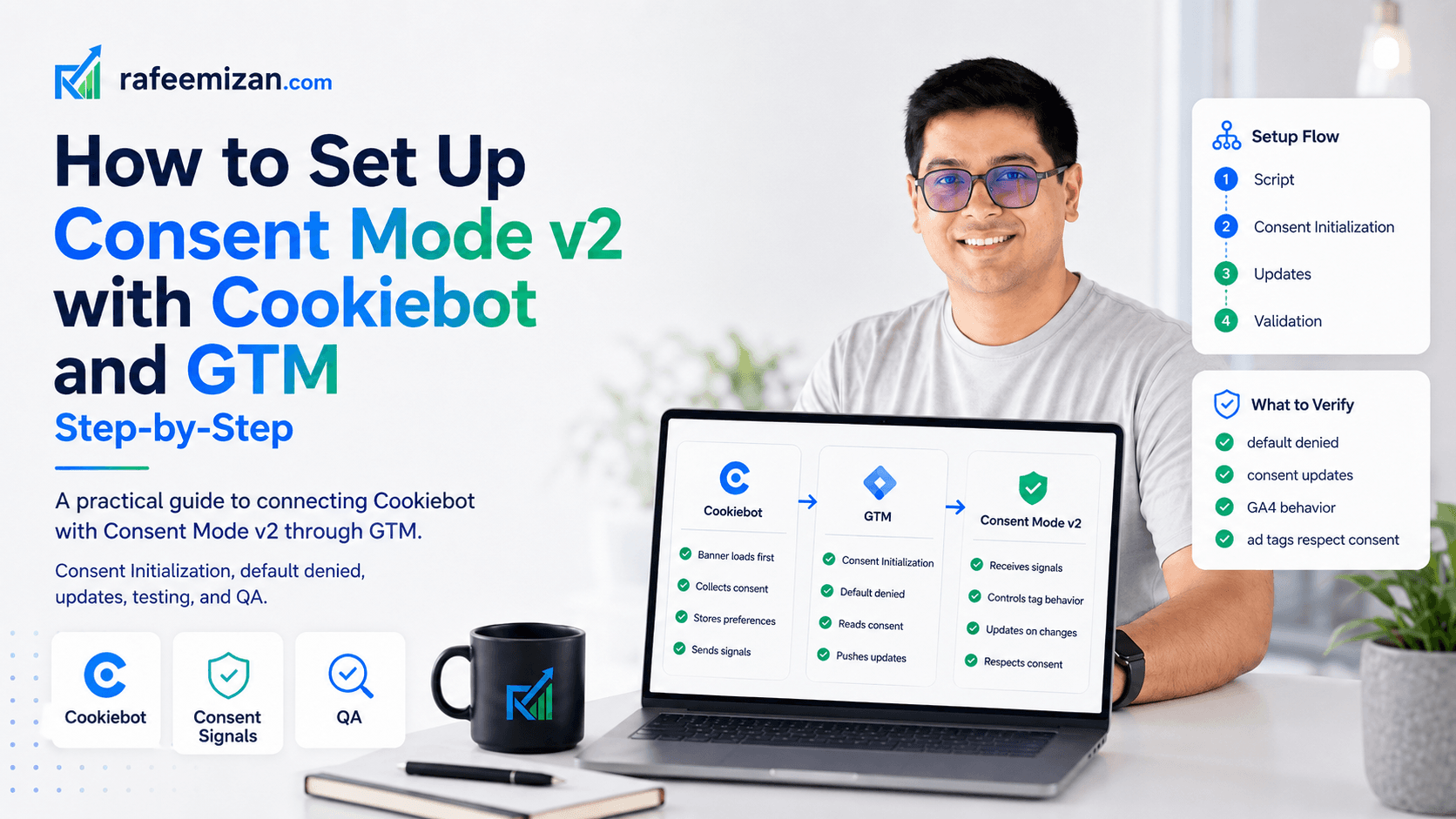
Step 2: Connect Cookiebot to Google Tag Manager
- Go to your Google Tag Manager container
- Create a new Custom HTML tag called "Consent Mode v2 - Cookiebot"
- Paste this code:
<script>
  window.dataLayer = window.dataLayer || [];

  var checkCookiebot = setInterval(function() {
    if (typeof CookieConsentAPI !== 'undefined') {
      clearInterval(checkCookiebot);

      var analyticsGranted = CookieConsentAPI.consent.categories.includes('analytics');
      var marketingGranted = CookieConsentAPI.consent.categories.includes('marketing');

      gtag('consent', 'default', {
        'analytics_storage': analyticsGranted ? 'granted' : 'denied',
        'advertising_storage': marketingGranted ? 'granted' : 'denied',
        'wait_for_update': 500
      });

      window.addEventListener('CookieConsentOnChange', function() {
        gtag('consent', 'update', {
          'analytics_storage': CookieConsentAPI.consent.categories.includes('analytics') ? 'granted' : 'denied',
          'advertising_storage': CookieConsentAPI.consent.categories.includes('marketing') ? 'granted' : 'denied'
        });
      });
    }
  }, 100);
</script>- Set the trigger to fire on Consent Initialization - All Pages
- Publish the container
The wait_for_update: 500 value is important. It tells Google tags to wait 500ms for a consent update before proceeding. Without this, tags can fire before Cookiebot has had a chance to read the user's stored consent choice.

Step 3: Update Your GA4 Configuration Tag
- Go to your GA4 Configuration tag in GTM
- Under Advanced settings > Conversion tracking, make sure all conversion tags respect consent
- Add
wait_for_updateto prevent premature data collection
Your GA4 tag should now wait for consent signals from Cookiebot, fire with granted consent only, and switch to modelled mode if consent is denied.
Step 4: Verify Consent Mode is Working
Check in Google Tag Assistant
- Install the Tag Assistant Chrome extension
- Navigate to your site
- Decline consent when the cookie banner appears
- You should see a consent initialisation event and the GA4 tag firing with
consent_status: denied - Accept consent — you should see a consent update event and GA4 switching to
consent_status: granted
Check in Google Analytics Real-Time
- Go to your GA4 property
- Navigate to Reports > Realtime
- Visit your site and accept consent
- You should see events appear in realtime within seconds
If consent is denied, GA4 won't send events but will switch to modelled tracking for Google Ads.
Step 5: Test with Google's Consent Mode Debugger
- Install the Consent Mode Debugger Chrome extension
- Visit your website
- Interact with the consent banner
- The debugger will show you the exact consent signals being sent
I run this test with three scenarios: accepting all, declining all, and accepting only analytics. The consent signals in the debugger should change accordingly each time.

What Happens with Different Consent States
When the User Grants All Consent
- GA4 collects full event data
- Google Ads receives conversion data
- Remarketing lists are built
- Full tracking resumes
When the User Denies Analytics Consent
- GA4 switches to modelled mode
- GA4 estimates data for denied users based on consented users
- Remarketing is disabled
- Google Ads receives limited data
When the User Denies Marketing Consent
- Analytics continues normally
- Google Ads cannot track conversions
- Remarketing is disabled
- Ad platform optimisation is limited
Common Implementation Mistakes
These are the things that most often go wrong when I audit Consent Mode setups:
- The script tries to read Cookiebot before it has loaded. Always verify the CookieConsentAPI exists before calling it.
- Typos in signal names. Use exactly
analytics_storageandadvertising_storage— GA4 will silently ignore anything that doesn't match. - Tags firing before the default consent state is set. Default should always be denied, and that needs to fire on page load before any other tags.
- The update signal never fires. If a user changes their consent preferences, you need to be listening for the CookieConsentOnChange event and sending a consent update call.
- Treating this as only a GA4 concern. Consent Mode applies to Google Ads tags, Floodlight, and anything else running through GTM that touches a Google product.
Compliance Checklist
- Consent banner is visible before any tracking starts
- Consent Mode is initialised on page load
- Cookiebot is properly configured with all trackers
- GA4 respects consent signals
- Google Ads respects the advertising_storage signal
- Consent updates are tracked when users change preferences
- Privacy policy mentions which tracking is enabled when
- Users can withdraw consent easily
Monitoring and Maintenance
Monthly: check that consent rates are in a reasonable range. For EU sites, I typically see 40-65% acceptance rates. If it drops significantly below that, something may have changed in how the banner is presented.
Quarterly: re-run the Cookiebot scan and review whether the cookie list is still accurate. Sites change, new tools get added, and the consent declaration needs to stay current.
When tool updates occur: verify that Cookiebot and GTM are still in sync. I've seen Cookiebot updates change the API shape in ways that silently broke the GTM integration.
Consent Mode v2 is not a one-time setup. It needs regular attention to stay working correctly and to keep your compliance posture solid.