Content Security Policy and Analytics Tracking: How CSP Can Break GA4, GTM, and Marketing Tags
Introduction
A tracking setup can look correct and still fail.
I recently faced a case where Google Tag Manager was installed properly. Tag Assistant confirmed that the GA4 tag was loading. The GTM container was published. The Measurement ID was correct. Everything looked clean from the usual marketing setup checklist.
But Google Analytics 4 still showed this message:
No data received from your website yet.
The actual issue was not GA4, GTM, or the Measurement ID. The issue was the website's Content Security Policy, also known as CSP.
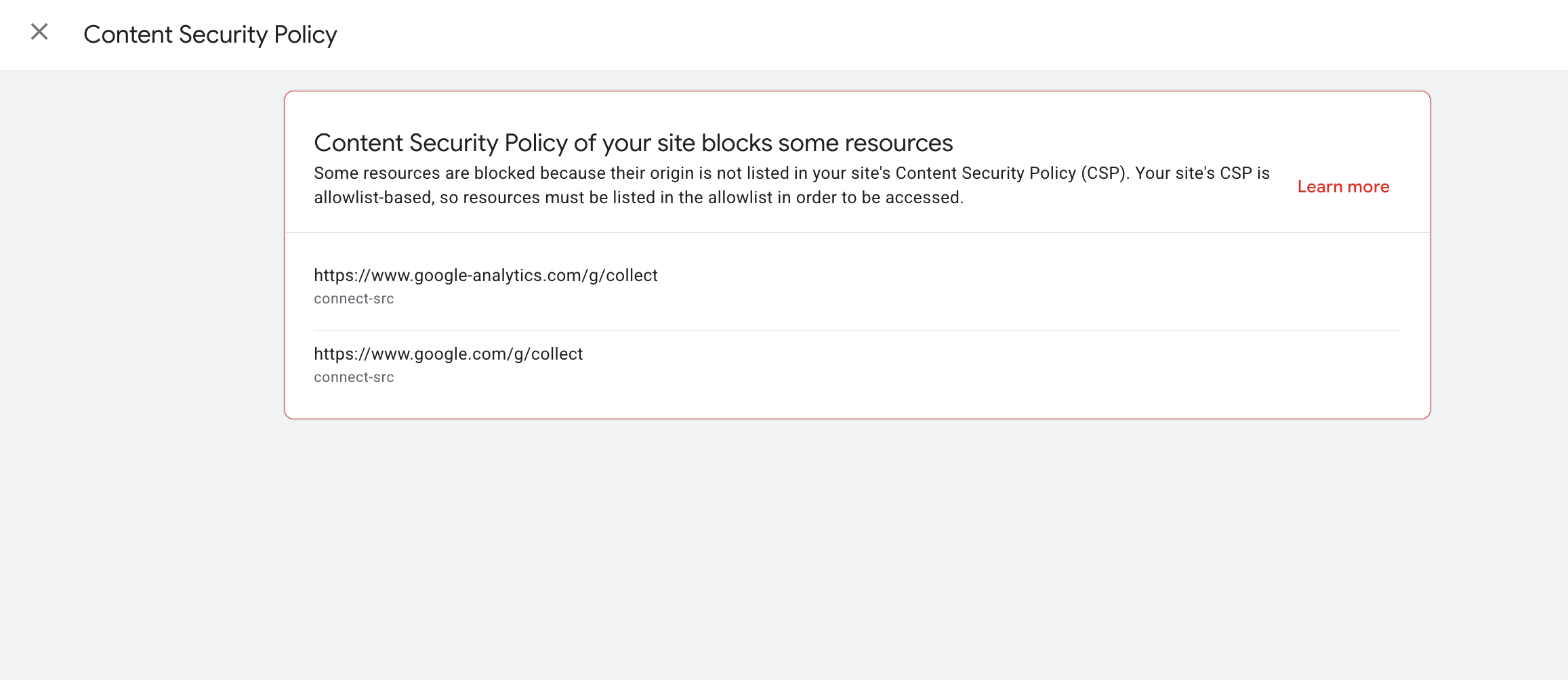
The site's CSP was blocking the GA4 collection requests:
https://www.google-analytics.com/g/collect
https://www.google.com/g/collect
This is one of those problems that is easy to create and easy to miss. The tag can load, but the browser can still block the data from being sent to Google Analytics.
For marketers, analytics specialists, developers, and business owners, this matters because CSP can break GA4, GTM, Meta Pixel, LinkedIn Insight Tag, Microsoft Clarity, Hotjar, TikTok Pixel, Google Ads conversion tracking, consent platforms, and server-side tagging setups.
Before rebuilding the entire tracking setup, check whether CSP is silently blocking your marketing data.
What is Content Security Policy?
Content Security Policy is a browser security rule that controls which external resources a website is allowed to load, execute, display, or connect to.
Think of it as an allowlist for the browser.
A website can tell the browser:
- Scripts can load only from these domains.
- Images can load only from these domains.
- Frames can load only from these domains.
- Browser requests can be sent only to these domains.
CSP exists for a good reason. It helps reduce security risks such as cross-site scripting, clickjacking, malicious script injection, and unauthorized third-party resource loading.
For a simple marketing explanation, CSP answers this question:
Which external domains should this website trust?
For developers, CSP is usually sent as an HTTP response header, for example:
Content-Security-Policy: default-src 'self'; script-src 'self' https://www.googletagmanager.com; connect-src 'self';Common CSP directives include:
| Directive | What it controls | Marketing impact |
|---|---|---|
script-src |
Where JavaScript files can load from | GTM, GA4, Meta Pixel, LinkedIn, Hotjar, Clarity scripts |
connect-src |
Where the browser can send network requests | GA4 collect hits, event requests, consent updates, APIs, server-side tagging endpoints |
img-src |
Where images and pixel requests can load from | Tracking pixels, conversion pixels, fallback image beacons |
frame-src |
Where iframes can load from | Embedded forms, consent tools, preview tools, third-party widgets |
worker-src |
Where workers can load from | Some advanced scripts and browser features |
default-src |
Fallback rule when a specific directive is missing | Can block tracking if connect-src, img-src, or other directives are not defined |
The important part: CSP is not only a developer concern. If marketing tools rely on external scripts and network requests, CSP directly affects analytics and conversion tracking.
How CSP affects analytics and tracking setup
Most tracking tools do more than load a script.
A typical analytics setup has three separate layers:
Script loading
The browser loads a JavaScript file, such as GTM, GA4, Meta Pixel, Clarity, or Hotjar.
Network requests
The script sends information back to a collection endpoint. This can happen through requests such as
fetch, XHR,sendBeacon, image pixels, or other browser mechanisms.Event collection
The platform receives and processes events like
page_view,purchase,generate_lead,form_submit, orbutton_click.
This is where many teams get confused.
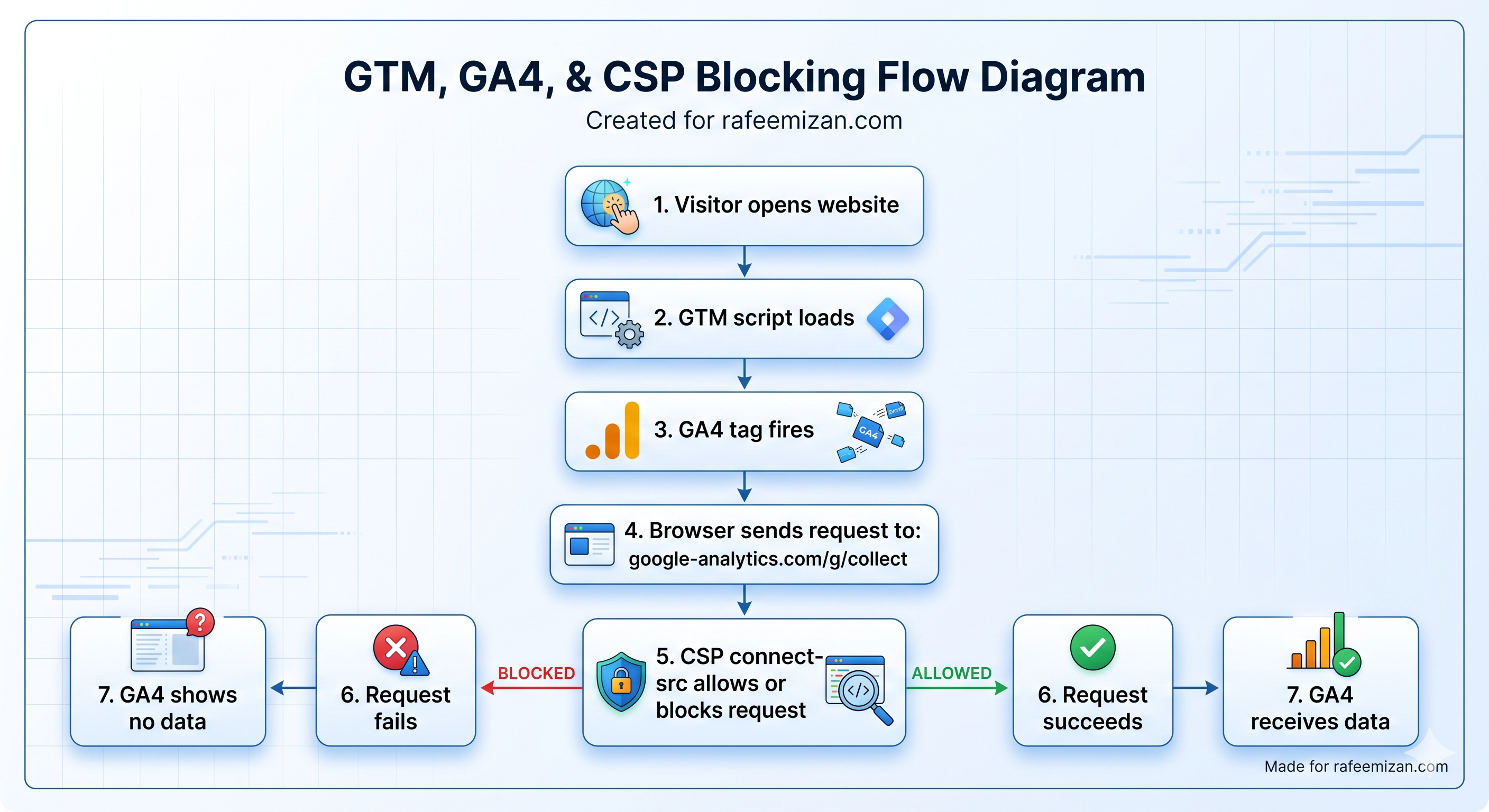
Tag Assistant may confirm that the GA4 tag loaded. That only proves that the tag script ran or attempted to run. It does not always prove that the data collection request successfully reached GA4.
Here is the practical difference:
script-src allows:
https://www.googletagmanager.com
https://www.google-analytics.com

connect-src blocks:
https://www.google-analytics.com/g/collect
https://www.google.com/g/collect
In this case, the script can load, but the event hit can fail.
That means the marketing team sees "tag loaded," while GA4 still shows no data. From a business point of view, tracking is broken even though the implementation appears correct.
Real example: GA4 tag loads but GA4 says no data received
Here is the real troubleshooting pattern.
The website was built with Next.js and hosted on Vercel. GTM was installed correctly. Tag Assistant verified that the GA4 tag was loading. The GTM container was published and the GA4 Measurement ID was correct.
But GA4 Home still showed:
No data received from your website yet.In Tag Assistant and the browser Console, the real issue became visible. The browser was blocking these requests because of Content Security Policy:
https://www.google-analytics.com/g/collect
https://www.google.com/g/collect
This means the browser was not allowing GA4 to send the actual collection request.
So the issue was not necessarily:
- Wrong GA4 Measurement ID
- Missing GTM container
- Unpublished GTM workspace
- Broken GA4 configuration tag
- Consent Mode v2 misconfiguration
- Google Analytics delay
The issue was the website security policy blocking analytics data collection.
This is why CSP should be part of every serious analytics QA checklist, especially for modern websites built with frameworks like Next.js and deployed on platforms like Vercel.
Common analytics tools affected by CSP
CSP can affect almost every marketing and analytics platform because most of them load third-party scripts and send data to external domains.
Common tools that may need CSP updates include:
- Google Tag Manager
- Google Analytics 4
- Google Ads conversion tracking
- Meta Pixel
- LinkedIn Insight Tag
- Microsoft Clarity
- Hotjar
- TikTok Pixel
- Consent management platforms
- A/B testing tools
- CRM form embeds
- Chat widgets
- Server-side tagging endpoints
Each tool can require different domains across different CSP directives.
For example:
- GTM may need domains under
script-src. - GA4 may need domains under
script-srcandconnect-src. - Meta Pixel may need
script-src,connect-src, andimg-src. - Hotjar may need
script-src,connect-src,img-src,frame-src, and sometimesworker-src. - Consent tools may require
script-src,connect-src,frame-src, and style-related directives. - Server-side tagging may require your custom tagging domain under
connect-src.
The wrong approach is to copy a CSP from another project and assume it will work.
The correct approach is to map the tracking stack and allow only the domains required by the tools actually used on the website.
How to check if CSP is causing tracking issues
Use this troubleshooting checklist before blaming GA4, GTM, consent mode, or the tracking implementation.

1. Check the browser Console
Open the live website in Chrome, then open DevTools.
Go to:
Right click > Inspect > ConsoleSearch for messages like:
Refused to connect because it violates the following Content Security Policy directiveor:
Refused to load the script because it violates the following Content Security Policy directiveor:
Refused to load the image because it violates the following Content Security Policy directive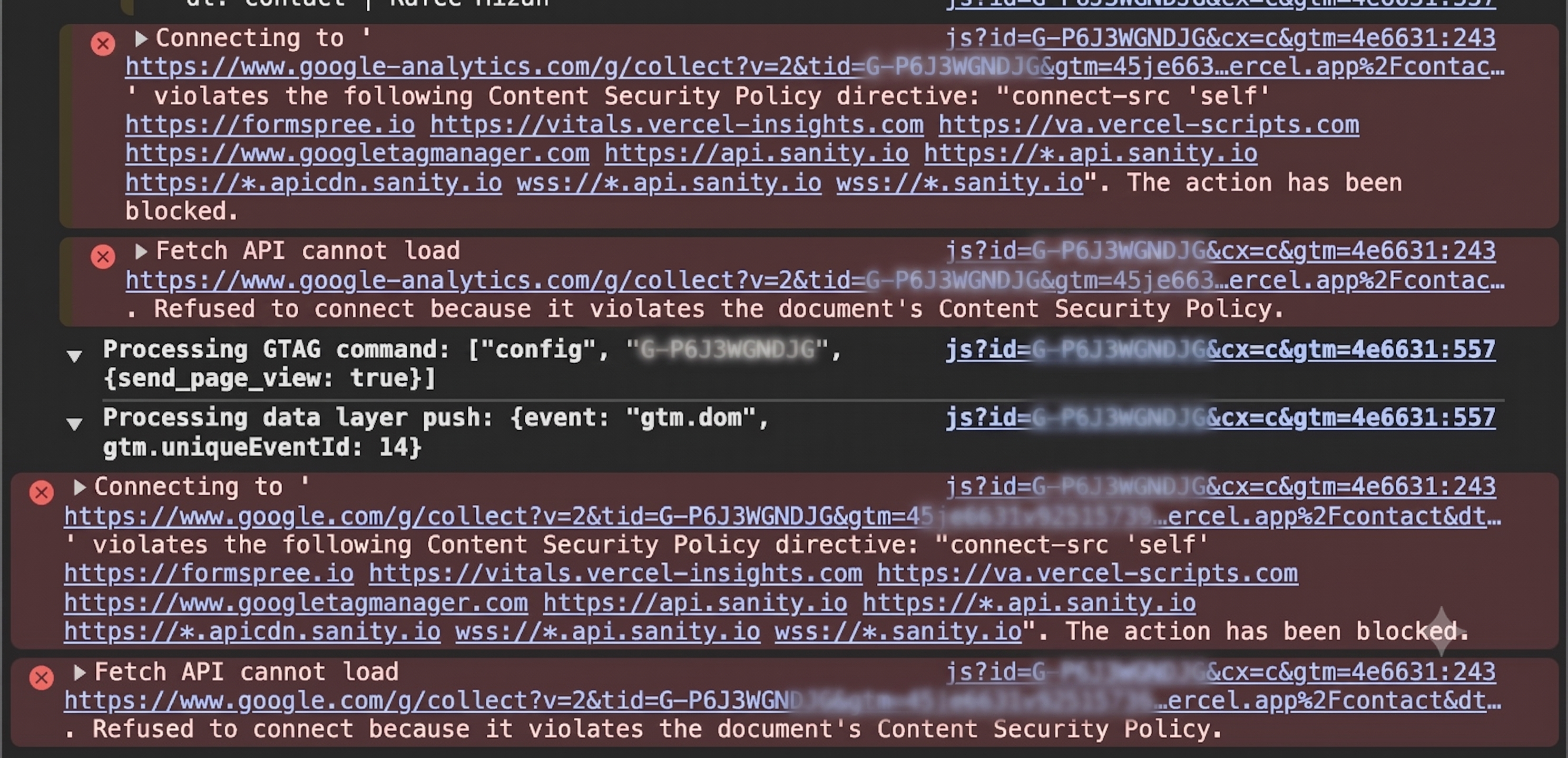
2. Check DevTools Network requests
Open DevTools and go to the Network tab.
Reload the page and search for requests like:
g/collect
collect
tr
events
clarity
hotjar
analytics
ads
pixel
Then check the request status.
You are looking for signs like:
- Blocked by CSP
- Failed request
- Missing request
- Console error linked to the request
- Request never sent after the tag fired
For GA4, specifically search for:
g/collectA healthy GA4 request will usually show a successful network status such as 200 or 204.
3. Check Tag Assistant carefully
Do not stop at "tag loaded."
Check whether the expected event was actually sent. For GA4, that usually means confirming page_view or the relevant custom event.
Tag Assistant is useful, but it should be combined with Network, Console, GA4 DebugView, and GA4 Realtime.
4. Check GA4 Realtime and DebugView
GA4 Home is not always the best place to validate a new setup.
Use:
Reports > Realtimeand:
Admin > Data display > DebugViewDebugView is especially useful when testing with GTM Preview Mode or debug mode enabled because it shows incoming debug events in real time.
5. Compare with consent mode status
CSP is not the only reason data can be missing.
If consent mode is implemented, check whether analytics storage or ad storage is denied before consent. Also test after accepting cookie consent.
A common mistake is assuming CSP is the issue when consent is blocking or modifying behavior. The reverse also happens. Teams blame consent mode, but the real blocker is CSP.
6. Test in Incognito
Use Incognito or a clean browser profile to reduce noise from extensions, old cookies, and cached behavior.
Then test again after accepting cookie consent.
7. Disable ad blockers
Ad blockers and privacy extensions can block analytics requests. Test with extensions disabled before concluding that CSP is the only blocker.
8. Test production, not only staging
CSP often differs between staging and production.
You may have working tracking in staging and broken tracking in production because the production header is stricter.
Always test the live URL.
9. Confirm CSP headers from the live URL
Check the actual response headers from production.
You can do this in DevTools:
Network > Document request > Headers > Response Headers > content-security-policyYou can also ask a developer to check via terminal:
curl -I https://example.comLook for the content-security-policy header and confirm whether the required analytics domains are included.
Important CSP directives for analytics
If you work with analytics, these directives matter the most.
script-src
Controls where scripts can load from.
This is usually required for tools like GTM, GA4, Meta Pixel, LinkedIn Insight Tag, Hotjar, Clarity, TikTok Pixel, and consent tools.
If script-src blocks a tool, the script may not load at all.
connect-src
Controls where the browser can send data using browser request mechanisms such as fetch, XHR, WebSocket, EventSource, and sendBeacon.
This is critical for analytics event collection.
For GA4, this is where g/collect requests can get blocked.
img-src
Controls where images can load from.
Many tracking tools still use image pixel requests or fallback beacons. If img-src is too strict, some conversion pixels may fail.
frame-src
Controls where iframes can load from.
This can affect consent tools, embedded forms, preview tools, surveys, chat widgets, and third-party marketing widgets.
worker-src
Controls where web workers can load from.
This may be relevant for some tracking, testing, performance, or user behavior analytics tools.
default-src
Acts as a fallback when a more specific directive is missing.
For example, if connect-src is not defined, the browser can use default-src as the fallback. This can accidentally block analytics requests even when nobody explicitly configured connect-src.
Simple GA4 and GTM CSP example
This is a simplified example, not a universal recommendation:
Content-Security-Policy: default-src 'self'; script-src 'self' 'unsafe-inline' https://www.googletagmanager.com https://www.google-analytics.com; connect-src 'self' https://www.google-analytics.com https://www.google.com;This example allows:
- GTM and GA4 scripts to load through
script-src - GA4 collection requests to reach
google-analytics.comandgoogle.comthroughconnect-src
Important: do not copy and paste this blindly into every website. Your CSP should match your actual security requirements, tracking stack, consent setup, and third-party tools. Developers should review this before production deployment.
Example fix for Vercel and Next.js
If your website uses Next.js, CSP may be configured in next.config.js, middleware, or a hosting-level configuration.
If your site is deployed on Vercel, CSP can also be configured through vercel.json, depending on the project setup.
The key point is simple:
Update the existing CSP directive. Do not create duplicate CSP headers or duplicate directives.
Duplicate CSP policies can make debugging harder because the browser may enforce multiple policies.
Example using next.config.js
const cspHeader = `
  default-src 'self';
  script-src 'self' 'unsafe-inline' https://www.googletagmanager.com https://www.google-analytics.com;
  connect-src 'self' https://www.google-analytics.com https://www.google.com;
  img-src 'self' data: https://www.google-analytics.com https://www.googletagmanager.com;
  frame-src 'self' https://www.googletagmanager.com;
`.replace(/\s{2,}/g, ' ').trim();

/** @type {import('next').NextConfig} */
const nextConfig = {
  async headers() {
    return [
      {
        source: '/(.*)',
        headers: [
          {
            key: 'Content-Security-Policy',
            value: cspHeader,
          },
        ],
      },
    ];
  },
};

module.exports = nextConfig;
Example using vercel.json
{
  "headers": [
    {
      "source": "/(.*)",
      "headers": [
        {
          "key": "Content-Security-Policy",
          "value": "default-src 'self'; script-src 'self' 'unsafe-inline' https://www.googletagmanager.com https://www.google-analytics.com; connect-src 'self' https://www.google-analytics.com https://www.google.com; img-src 'self' data: https://www.google-analytics.com https://www.googletagmanager.com; frame-src 'self' https://www.googletagmanager.com;"
        }
      ]
    }
  ]
}
After updating CSP, the site must be redeployed.
Publishing GTM changes will not update website security headers. The developer needs to deploy the website or hosting configuration where CSP is managed.
Practical developer notes
Before changing CSP, confirm:
- Where CSP is currently set
- Whether it is set in Next.js, Vercel, middleware, CDN, security plugin, or server configuration
- Whether multiple CSP headers are being sent
- Whether a
Content-Security-Policy-Report-Onlyheader exists - Whether production and staging use different policies
- Whether nonce-based CSP is required for the project
For stricter implementations, developers may prefer nonces or hashes instead of 'unsafe-inline'. That is a security decision and should be handled based on the project's risk profile.
Validation checklist after fixing CSP
After the CSP update is deployed, validate the full tracking flow.

Use this QA checklist:
- The CSP error disappears from the browser Console.
- The GA4
g/collectrequest is visible in the Network tab. - The
g/collectrequest returns200or204. - Tag Assistant shows the
page_viewor relevant event as sent. - GA4 DebugView shows the event.
- GA4 Realtime shows active users.
- Events appear in GA4 reports after the normal processing delay.
- Meta Pixel, LinkedIn Insight Tag, Microsoft Clarity, Hotjar, TikTok Pixel, and other tags are tested separately.
- Consent behavior is tested before and after cookie acceptance.
- Production is tested, not only staging.
- Ad blockers and privacy extensions are disabled during QA.
This validation step is important because fixing GA4 does not automatically mean every marketing tag is fixed.
Common mistakes
Here are the mistakes I see most often when CSP breaks analytics tracking.
Assuming "tag loaded" means data was collected
A tag loading is not the same as a hit being sent and accepted.
Always check the Network request and the analytics platform.
Only checking GA4 Home
GA4 Home can be delayed or not detailed enough for troubleshooting.
Use Realtime and DebugView during setup validation.
Forgetting connect-src
This is the big one.
Many teams allow scripts under script-src but forget that analytics tools still need to send data through connect-src.
Adding script-src but not connect-src
This creates the exact situation where GTM or GA4 appears to load, but GA4 receives no data.
Testing staging but not production
Staging and production can have different CSP rules.
Always verify the live URL.
Publishing GTM changes but not deploying CSP changes
GTM changes happen inside GTM. CSP changes happen on the website, hosting layer, CDN, or server.
Both sides may need separate releases.
Ignoring cookie consent impact
Consent mode and cookie banners can change when and how analytics requests are sent.
Test before consent, after consent, and after refreshing the page.
Adding duplicate CSP directives
Do not add multiple connect-src or script-src directives without understanding the existing policy.
Update the existing directive properly.
Copying CSP from another project
Every website has a different tracking stack.
A CSP that works for one website can break another website's GA4, Meta Pixel, LinkedIn Insight Tag, or Clarity setup.
Short checklist for downloadable PDF
Use this section later as a one-page PDF checklist.
CSP analytics tracking checklist
Before troubleshooting GA4 or GTM:
- Confirm GTM container is installed on the live site.
- Confirm the GA4 Measurement ID is correct.
- Confirm the GTM container is published.
- Confirm cookie consent is accepted during testing.
- Disable ad blockers and browser privacy extensions.
Check CSP:
- Open DevTools Console.
- Search for CSP errors.
- Look for "Refused to connect" messages.
- Look for blocked analytics domains.
- Check the live response header for
content-security-policy.
Check Network:
- Open DevTools Network tab.
- Search for
g/collect. - Search for
collect,tr,events,clarity, andhotjar. - Confirm requests are not blocked.
- Confirm successful status codes such as
200or204.
Check CSP directives:
script-srcallows required tracking scripts.connect-srcallows analytics collection endpoints.img-srcallows pixel requests.frame-srcallows required embedded tools.worker-srcis reviewed if behavior analytics tools require it.default-srcis not accidentally blocking missing directives.
Validate after deployment:
- Console CSP errors are gone.
- Network collection requests are visible.
- Tag Assistant shows events sent.
- GA4 DebugView shows events.
- GA4 Realtime shows active users.
- Other marketing tags are tested individually.
Final thoughts
Content Security Policy is important. It protects the website and helps developers control which external resources can run or communicate from the browser.
But CSP should not be implemented in isolation from marketing and analytics requirements.
Modern tracking setups depend on scripts, pixels, event requests, consent signals, and sometimes server-side endpoints. If the security policy is too strict or incomplete, analytics can break even when GTM and GA4 look correctly installed.
The practical takeaway is simple:
If tracking looks correct but data is missing, check CSP before rebuilding the entire tracking setup.
Marketers should know enough to spot the symptom. Developers should know which CSP directives to review. Business owners should understand that this is not a GA4 problem only. It is a coordination issue between security, analytics, and marketing operations.
FAQs
1. Can Content Security Policy block Google Analytics 4?
Yes. CSP can block GA4 if the required Google Analytics domains are not allowed. The most common issue is allowing GA4 or GTM scripts to load, but blocking the actual collection request through connect-src.
2. Why does Tag Assistant say GA4 loaded but GA4 shows no data?
Because loading the tag and sending data are not the same thing. Tag Assistant may confirm that the tag loaded, while the browser blocks the GA4 g/collect request because of CSP, consent settings, ad blockers, or another network issue.
3. Which CSP directive is most important for GA4 collection requests?
connect-src is critical because it controls where the browser can send network requests. GA4 collection requests to https://www.google-analytics.com/g/collect and https://www.google.com/g/collect can fail if those domains are not allowed.
4. Does fixing script-src automatically fix analytics tracking?
No. script-src controls script loading. Analytics tools also need to send event data to collection endpoints. That usually requires the right domains under connect-src, and sometimes img-src or frame-src depending on the tool.
5. Should marketers edit CSP themselves?
Usually, no. Marketers should identify the symptom and provide the blocked domains to developers. Developers should update CSP based on the site's security requirements, current tracking stack, and deployment setup.