Introduction
GA4 is a different beast from Universal Analytics, and if you're coming from UA, the learning curve is real. The underlying data model is completely different. Where UA counted sessions and pageviews, GA4 counts events. Every interaction, every scroll, every click gets treated the same way. Once that clicks, the rest of the implementation starts to make sense.
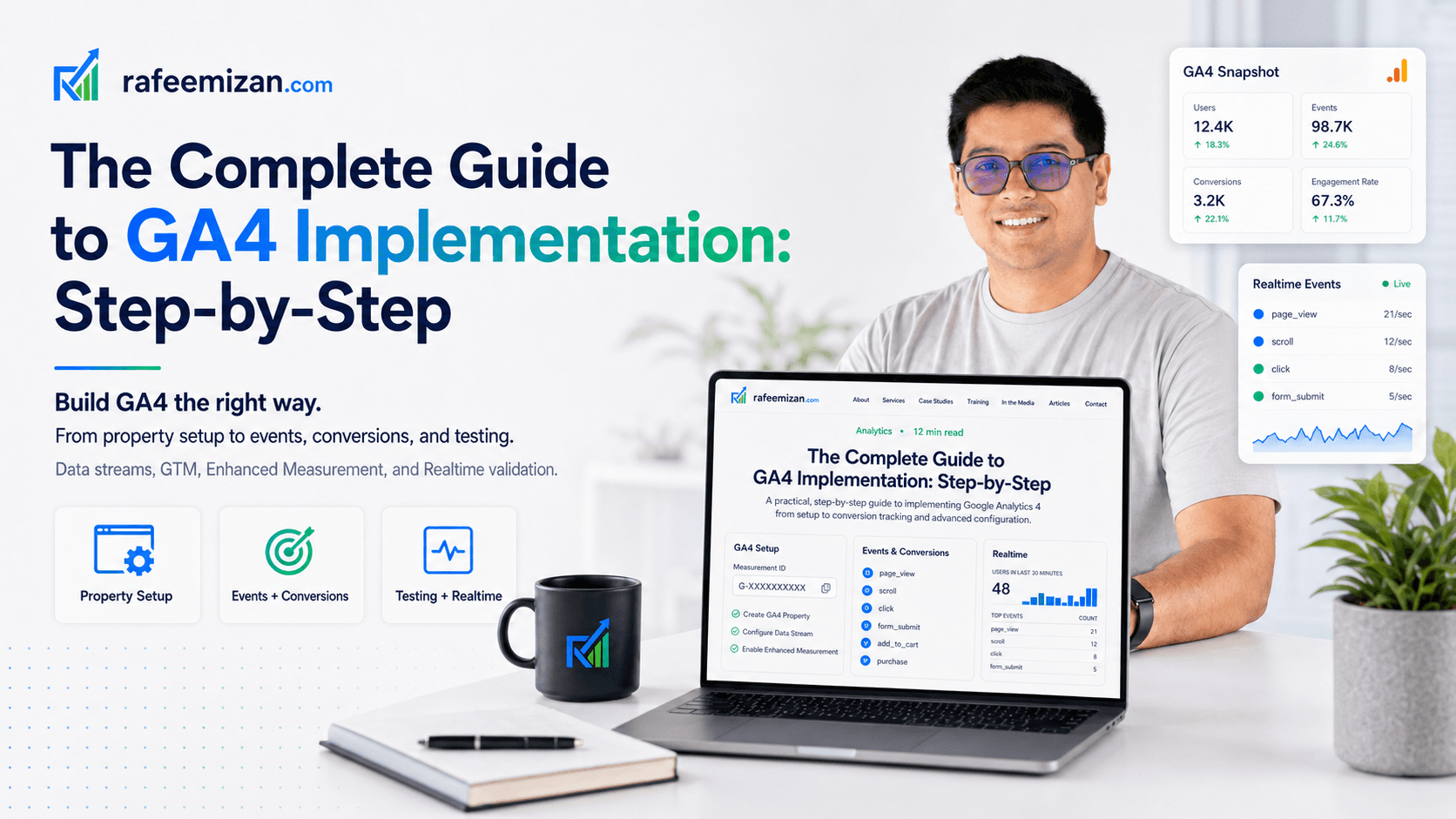
This guide walks through how I set up GA4 for client sites, from creating the property to getting conversion data flowing correctly.

Why GA4 Matters
It's worth understanding what changed before you dive into setup, because it affects how you think about the configuration.
The event-driven model means every user interaction is captured in the same format. A pageview is an event. A button click is an event. A purchase is an event. This uniformity makes it much easier to build custom reports and funnels that actually reflect how users move through your site.
Cross-platform tracking is also built in rather than bolted on. If you have both a website and a mobile app, you can connect them to the same GA4 property and see the full picture in one place.
Enhanced Measurement handles a lot of the basics automatically. Scroll depth, outbound link clicks, video engagement, file downloads, search results pages. You get all of this without writing a single line of custom code, as long as you turn it on.
And consent handling is baked into the architecture rather than treated as an afterthought. That matters a lot when you're working with clients in the EU.
Setting Up Your GA4 Property
Step 1: Create Your GA4 Property
- Log into Google Analytics
- Click Admin in the lower left
- Go to Property > Create property
- Fill in your property name, reporting timezone, currency, and industry category
- Click Create
Google will create the property and give you a Measurement ID.
One thing I always double-check here: the timezone and currency. These feel like minor details but they affect how revenue and time-based reports look, and you can't change them after the fact without creating a new property.

Step 2: Configure Your Data Streams
A data stream is the connection between your website and GA4. For a website:
- From your GA4 property, go to Data collection > Data streams
- Click Web
- Enter your website URL and stream name
- Click Create stream
- You'll receive a Measurement ID (G-XXXXXXXXXX) and a tag snippet
Make sure your timezone and currency settings match your business needs — these cannot be changed after initial setup.
Step 3: Install the Google Analytics 4 Tag
You have two main paths here.
Option A: Google Tag Manager (Recommended)
This is how I do it for almost every client. GTM gives you version control, testing tools, and the ability to add or modify tags without touching the codebase.
- Create a new tag in Google Tag Manager with tag type "Google Analytics: GA4 Configuration"
- Paste your Measurement ID
- Set the trigger to "All Pages"
- Save and publish
Option B: Direct Installation via gtag.js
If GTM isn't in the picture, you can drop this directly into your site's :
<!-- Google Analytics -->
<script async src="https://www.googletagmanager.com/gtag/js?id=G-XXXXXXXXXX"></script>
<script>
  window.dataLayer = window.dataLayer || [];
  function gtag(){dataLayer.push(arguments);}
  gtag('js', new Date());
  gtag('config', 'G-XXXXXXXXXX');
</script>
Replace G-XXXXXXXXXX with your actual Measurement ID.
Configuring Events and Conversions
GA4 automatically tracks several events, but you'll want to define conversion events specific to your business.
Automatically Tracked Events
With Enhanced Measurement turned on, GA4 collects these out of the box:
page_view— when a page loadsscroll— when a user scrolls to the bottom of a pageclick— link clicks to external sitesvideo_progress— video engagementform_submit— form submissionsview_search_results— internal search
Creating Custom Events
For anything beyond the defaults, you'll need to create custom events. In GTM:
- Create a new event trigger (click, form submission, etc.)
- Create a tag that sends this event to GA4
- Give it a meaningful event name (for example,
contact_form_submitoradd_to_cart)
Naming matters more than people realise. I've seen implementations with event names like btn_click_v2_final that become completely unreadable six months later. Use something that describes what happened.
Marking Events as Conversions
Once you have events firing:
- Go to Admin > Events in GA4
- Find the event you want to mark as a conversion
- Click the Mark as conversion checkbox
Don't mark every event as a conversion. Focus on actions that directly indicate business value: purchases, form submissions, phone calls. If everything is a conversion, nothing is.
Setting Up User Data and Attribution
User ID Feature
If your site has user logins, enabling User ID tracking gives you a cleaner picture of individual journeys across sessions and devices:
- Go to Admin > Data settings > Data collection
- Enable User-ID feature
- Pass the user ID to GA4 via GTM or gtag.js
Google Signals and Cross-Device Tracking
Enable Google Signals to see cross-device journeys and use audience-based reporting:
- Go to Admin > Data settings > Data collection
- Turn on Google Signals data collection
Just be aware that Google Signals requires consent from users. If you're running Consent Mode, this will only activate for users who have opted in.
Consent Mode v2 Implementation
If you're serving users in the EU, Consent Mode v2 is required for Google products to work compliantly. I cover this in depth in a separate guide, but at a high level:
Consent Mode tells Google which tracking modes are active based on user consent. When analytics consent is granted, GA4 runs normally. When it's denied, GA4 switches to modelled mode and estimates behaviour based on consenting users rather than going completely dark.
The steps are:
- Integrate a Consent Management Platform like Cookiebot or Termly
- Configure your CMP to set consent signals
- Connect those signals to Google Tag Manager
- Add consent parameters to your GA4 configuration tag in GTM
When advertising consent is denied, GA4 operates in modelled mode, estimating missing data based on consented users.
For a worked example of this exact setup for a real client, see this case study on a healthcare clinic's consent-aware GA4 implementation.
Testing Your Implementation
Google Tag Assistant
- Install the Tag Assistant Chrome extension
- Click the extension and navigate your website
- Look for your GA4 tag firing correctly
- Verify event data is being sent
The first thing I check in Tag Assistant is whether the GA4 config tag fires on every page, and then whether custom events fire at the right moments. If events show up in red or yellow, Tag Assistant usually gives you enough detail to diagnose what went wrong.

Real-time Report in GA4
- Go to Reports > Realtime
- Visit your website
- You should see events appearing in the realtime dashboard within seconds
This is the quickest sanity check. If you can see your own visit show up in Realtime within 30 seconds, the basic plumbing is working.
Common Implementation Mistakes to Avoid
These are the ones I see most often when auditing accounts:
- Events are firing but none of them are marked as conversions. GA4 doesn't assume anything is a conversion — you have to tell it.
- Inconsistent event naming across the site. Pick a convention and stick to it (
contact_form_submit, notform1orFormSubmitorlead). - PII ending up in event parameters. Never send names, email addresses, or anything personally identifiable to GA4.
- Internal traffic polluting the data. Set up a filter to exclude your own IP range, especially if you're doing a lot of QA on the live site.
- Consent Mode treated as optional. In my experience, it's much easier to build it in from the start than to retrofit it after the fact.
Next Steps
Once your GA4 is live and collecting data:
- Wait 24-48 hours for data to populate in reports
- Create custom reports tailored to your key metrics
- Set up alerts for anomalies
- Review regularly and iterate on your event taxonomy
GA4's value comes from deliberate configuration. It won't tell you much if you just install the snippet and walk away. Spend time defining what actually matters for the business, name your events well, and you'll end up with a data foundation that makes every marketing decision more confident.