Why Conversion Tracking Matters for E-Commerce
Without proper conversion tracking, you genuinely cannot answer the most important questions in your marketing. Which traffic sources actually drive sales? Which products have the best margins? Which ad campaigns are worth scaling? What does it actually cost to acquire a customer?
I've audited accounts where significant ad spend was running against channels that looked active in traffic reports but were contributing almost nothing to revenue. That only becomes visible when your conversion tracking is clean.
Getting this right turns your analytics from a source of vanity metrics into something you can base real budget decisions on.
Core E-Commerce Conversion Events
Every e-commerce site should track these key events in GA4:
add_to_cart— user adds a product to cartview_cart— user views their shopping cartbegin_checkout— checkout process startsadd_shipping_info— user provides shipping addressadd_payment_info— user adds payment methodpurchase— successful order placement
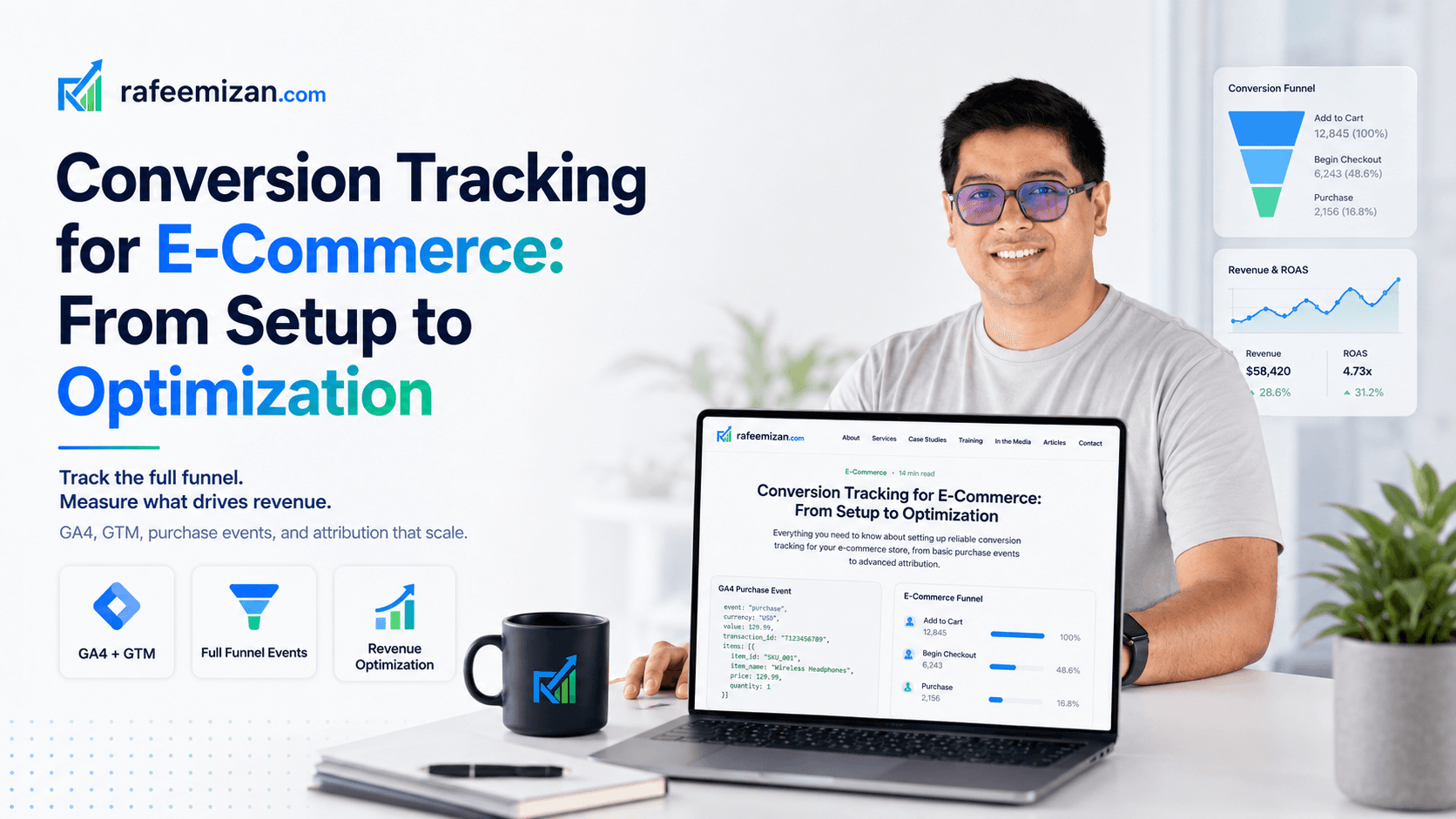
The flow maps directly to your customer journey: Browse, Add to Cart, Start Checkout, Add Payment, Purchase. Each step gives you a stage to measure drop-off, which is where the real optimisation insight lives.
Setting Up the Purchase Event (Most Important)
The purchase event is where revenue tracking happens and where Google Ads gets its conversion data. Get this one right first.
What Data the Purchase Event Should Include
gtag('event', 'purchase', {
  transaction_id: "123456789",
  value: 99.99,
  currency: "USD",
  items: [
    {
      item_id: "SKU-1001",
      item_name: "Blue Running Shoes",
      currency: "USD",
      price: 49.99,
      quantity: 1,
      item_category: "Footwear",
      item_brand: "Nike"
    },
    {
      item_id: "SKU-2002",
      item_name: "Sports Socks",
      currency: "USD",
      price: 9.99,
      quantity: 2,
      item_category: "Accessories",
      item_brand: "Nike"
    }
  ]
});
Implementation via Google Tag Manager
Create a data layer variable for order data:
- Variable name:
Order IDmapped to{{Order ID}} - Variable name:
Order Valuemapped to{{Order Value}} - Create a Custom JavaScript variable for the items array:
{{Items Array}}
- Variable name:
Create a trigger for purchase:
- Trigger type: Custom Event
- Event name:
purchase
Create the GA4 Event tag:
- Tag type: GA4 Event
- Measurement ID: your GA4 ID
- Event name:
purchase - Event parameters:
transaction_id,value,currency,items
Publish and test using Tag Assistant
The items array is the part people most often get wrong. It needs to come from your data layer, not be hardcoded, and it needs to match the actual cart contents at the moment of purchase.

Tracking the Full Funnel
Beyond purchase, track the entire checkout flow to identify drop-off points.
Add to Cart Event
gtag('event', 'add_to_cart', {
  value: 49.99,
  currency: "USD",
  items: [
    {
      item_id: "SKU-1001",
      item_name: "Blue Running Shoes",
      price: 49.99,
      quantity: 1,
      item_category: "Footwear"
    }
  ]
});
Fire this when a user clicks "Add to Cart".
Begin Checkout Event
gtag('event', 'begin_checkout', {
  value: 99.99,
  currency: "USD",
  items: [
    // All items currently in the cart
  ]
});
Fire when the checkout form appears.
View Item Event
Track product page views to understand browsing behaviour:
gtag('event', 'view_item', {
  items: [
    {
      item_id: "SKU-1001",
      item_name: "Blue Running Shoes",
      price: 49.99,
      item_category: "Footwear",
      item_brand: "Nike"
    }
  ]
});
Setting Up Conversion Goals in GA4
Once events are firing, mark the important ones as conversions:
- Go to Admin > Events in GA4
- Find the
purchaseevent - Click the checkbox: Mark as conversion
- Repeat for
begin_checkoutand other key milestones
These events will now appear in conversion reports and can be analysed across your traffic acquisition data.
Revenue Reporting
GA4 calculates revenue automatically when you include the value parameter in events.
View Revenue Reports
- Go to Reports > Monetization in GA4
- You'll see total revenue by date, by traffic source, and by user
- Go to Reports > User Acquisition and select "Revenue" as your metric
This is where you discover which channels are genuinely profitable. Traffic volume and revenue contribution often tell very different stories.
Implementing Pixel-Based Tracking
GA4 handles your analytics, but paid ad platforms need their own conversion signals to optimise campaigns properly.
Meta Pixel Setup
- Create a Meta pixel in Business Manager
- Get your pixel ID
- Install via GTM — create a Custom HTML tag with your Meta pixel base code and set up triggers for each conversion event
Google Ads Conversion Tracking
The modern approach here is to import from GA4 rather than running a separate Google Ads tag:
- Link your GA4 property to Google Ads
- In Google Ads, go to Tools > Conversions
- Select Import > Google Analytics 4
- Choose the conversions you want to track
Google Ads then receives conversion data directly from GA4. No separate tags needed.
Debugging Common Issues
Purchase Event Not Firing
- Open the Tag Assistant Chrome extension
- Complete a test purchase
- Look for the
purchaseevent in the Tag Assistant log - Verify the data layer push is happening at the right moment — sometimes the event fires too early, before the transaction is confirmed on the backend

Revenue Not Showing in Reports
- Verify the
valueparameter is included in the purchase event - Verify
currencyis a valid currency code - Wait 24 hours — GA4 needs time to process data
- Check Admin > Data Collection to confirm your data stream is receiving the events
Discrepancies Between GA4 and Your Platform
Some discrepancy is normal and expected. Common causes:
- Bounce backs: GA4 counts the initial data layer call, while your platform may only count transactions that clear payment processing
- Timing: GA4 processes in real-time, but your platform may batch-process overnight
- Filters excluding certain traffic
A 5-10% gap is typical. Anything more than that is worth investigating.
Advanced: Revenue Attribution Models
GA4 supports different attribution models to understand which touchpoints contribute to revenue:
- Go to Admin > Data settings > Attribution settings
- Choose your attribution model:
- Last click (default): all credit to the final conversion touch
- First click: all credit to the first touch
- Linear: equal credit to all touches
- Time decay: increasing credit to more recent touches
- Position-based: 40% to first touch, 20% to middle, 40% to last
Running reports with different models often reveals interesting gaps between what gets credit under last-click and what actually started the journey.
Checklist: Before Going Live
- All events include required parameters (
value,currency,items) - Events fire at the correct moments in the user journey
- Purchase event data matches actual order values
- Events are tested with Tag Assistant
- Conversions are marked in GA4
- Revenue reports show data
- Ad platforms are receiving conversion signals
- Team has access to analytics reports
- Alerts are set up for anomalies
Ongoing Monitoring
Check conversion rates and revenue trends weekly for anomalies. A sudden drop in tracked revenue while actual sales continue is a sign something broke.
Monthly: review which products, categories, and traffic sources are driving the most revenue.
Quarterly: audit event data accuracy against actual transaction records from your platform.
Conversion tracking drifts as sites change. New checkout flows, new payment providers, and new marketing tools all have the potential to break something. Catching issues early, before they've corrupted weeks of data, saves a lot of pain later.